

Phone photos are convenient for capturing receipts, notes, forms, and paper records. However, a folder of separate photos can be awkward to send or print. Converting the images into one PDF makes the pages easier to organize, but preparation matters if the result is to look like a document rather than a random collection of snapshots.
Prepare the photos
Choose sharp images with the full page visible. Avoid strong shadows, glare, fingers covering text, and extreme angles. If the text is too small or blurry in the original photo, conversion will not restore missing detail. Retake the photo when possible, keeping the phone parallel to the page and using even lighting.
Crop and order pages
Crop away unnecessary background when it does not contain important context. Make sure no signatures, stamps, or handwritten notes are cut off. Decide on page order before creating the PDF: for example, cover sheet, form, supporting documents, and receipts. Rename image files or use a conversion tool that lets you arrange them.
Convert images into a PDF
Use the Image to PDF Converter to combine selected pictures into a PDF. After conversion, open the resulting document and inspect every page. Check orientation, margins, readability, and whether any image is missing. If the document contains many pages, confirm the order from the first page to the last.
Manage file size
Phone photos can be large. If the resulting PDF is too large to send, resize images before conversion or use a suitable PDF compression workflow. Avoid lowering quality until small text becomes unreadable. Our guide to reducing PDF size explains what to check before compressing.
Protect private information
Receipts, IDs, contracts, and school or employment records may contain private details. Upload them only to services you trust and understand. If you are preparing a copy for public sharing, make sure sensitive information is properly removed using a method that actually removes it; drawing a black shape over text may not be enough in some file formats.
Before sending
- Check that every photo is sharp and complete.
- Arrange pages in the intended order.
- Open the final PDF and inspect each page.
- Confirm file size and readability.
- Use a clear filename and share only with the intended recipient.
A tidy PDF starts with good source photos. Taking a moment to prepare, arrange, and review the pages makes the final file much more useful.
Related Guides
You may also find it useful to convert images into a PDF (read this guide) and protect information before sharing a PDF (read more). Browse the Guides & Tutorials category for more practical articles.
Example: a receipt bundle
For a PDF made from several receipts, place the receipts in date order and rotate any landscape images before conversion. Check that totals, dates, and merchant names remain legible at normal zoom. If the phone camera captured a large area of background, crop it carefully without cutting off the edges of the receipt or any handwritten notes needed for verification.
Improve source images first
Use even lighting, avoid glare, and hold the phone parallel to the paper. If text is blurry, take another photo instead of expecting the PDF converter to repair it. For long documents, review page order and file size before sharing, and remove personal information that the recipient does not need.
Try the related tool
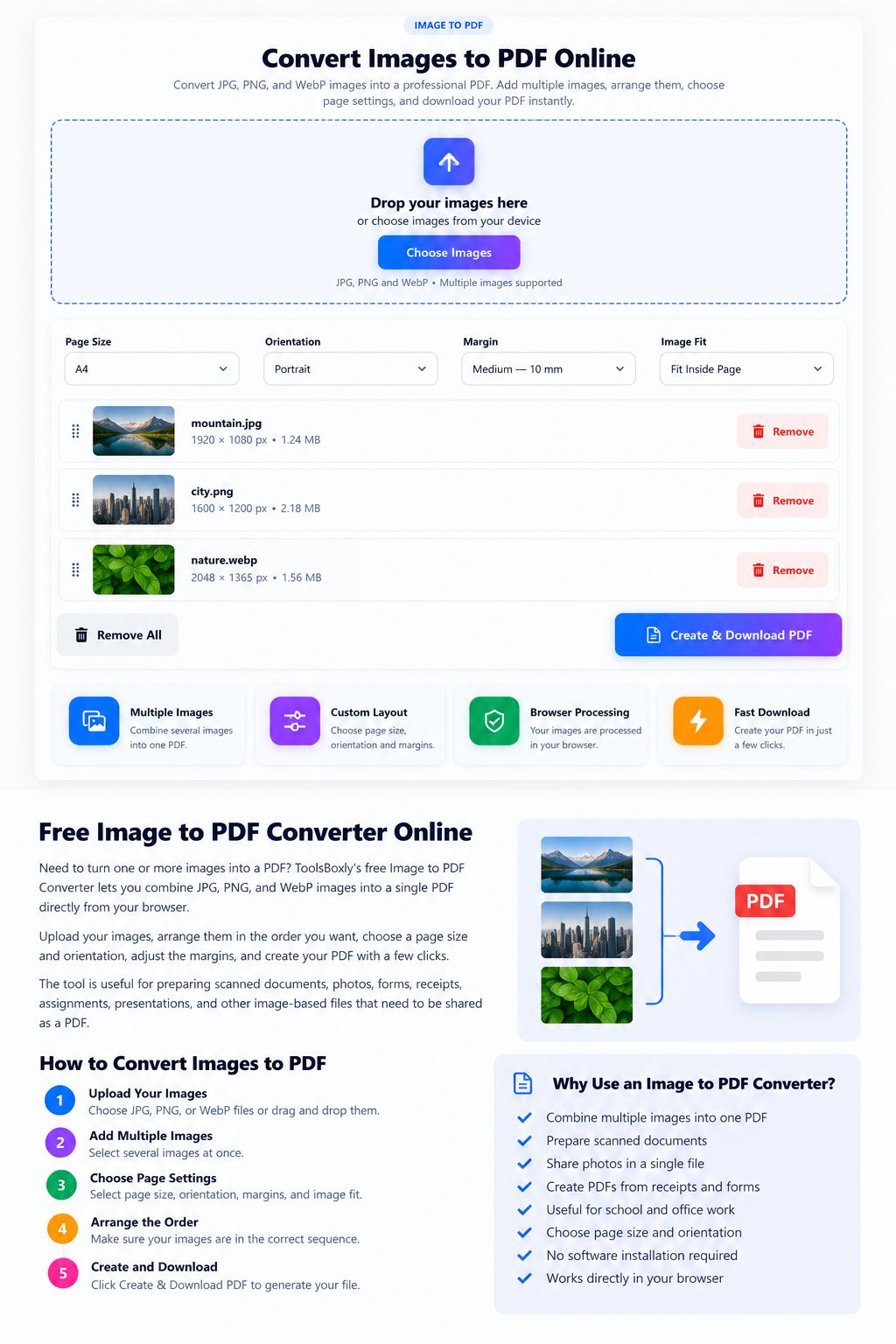
Open the Image to PDF Converter for a related file or text task. Check the result before using or sharing it.