
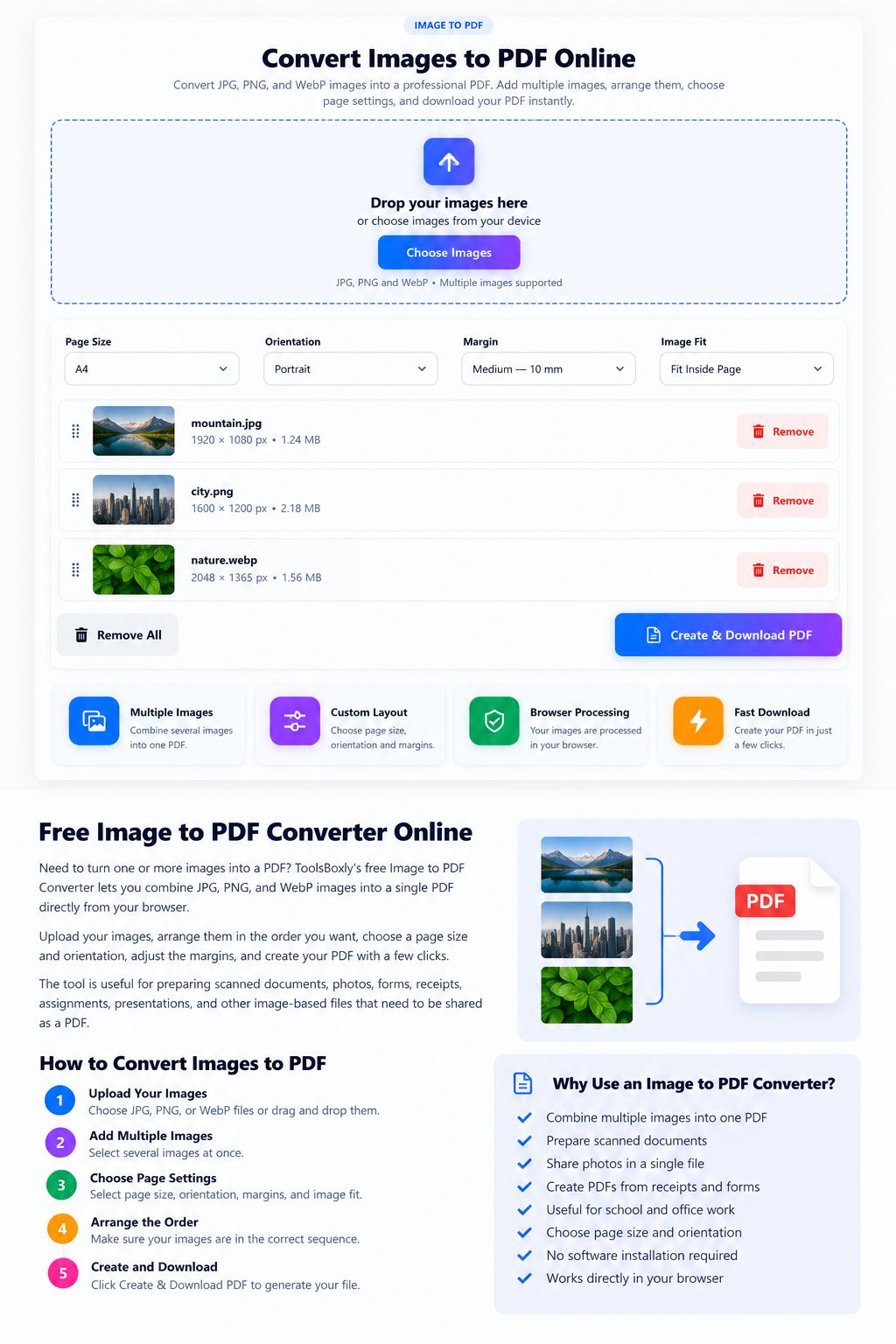
Convert Images to PDF Online
Convert JPG, PNG, and WebP images into a professional PDF. Add multiple images, arrange them, choose page settings, and download your PDF.
Drop your images here
or choose images from your device
JPG, PNG and WebP • Multiple images supportedFree Image to PDF Converter Online
Need to turn one or more images into a PDF? ToolsBoxly’s free Image to PDF Converter lets you combine JPG, PNG, and WebP images into a single PDF directly from your browser.
Upload your images, arrange them in the order you want, choose a page size and orientation, adjust the margins, and create your PDF with a few clicks.
The tool is useful for preparing scanned documents, photos, forms, receipts, assignments, presentations, and other image-based files that need to be shared as a PDF.
Your images are processed directly in your browser, so you don’t need to install desktop software just to create a simple PDF.
What Is an Image to PDF Converter?
An image to PDF converter is a tool that turns image files into PDF documents.
Images such as JPG, PNG, and WebP are useful for displaying pictures, graphics, screenshots, and scanned pages. However, when several images need to be shared as one document, a PDF can be more convenient.
For example, instead of sending five separate JPG files, you can combine them into one PDF file with each image placed on its own page.
The ToolsBoxly Image to PDF Converter is designed for this type of task. You can add multiple supported images and create a single PDF without manually inserting every image into a document editor.
How to Convert Images to PDF Online
Using the converter is straightforward.
1. Upload Your Images
Click Choose Images and select JPG, PNG, or WebP files from your device.
You can also drag and drop your images into the upload area.
Multiple images can be selected at the same time.
2. Add Multiple Images
If you have several images that belong to the same document, add them together before creating the PDF.
For example, you could combine:
- Scanned document pages
- Multiple receipts
- School assignment pages
- Product images
- Photos
- Screenshots
- Forms
- Notes
Each image will be placed into the generated PDF.
3. Choose the Page Size
The converter provides common document page sizes.
You can choose:
- A4 — useful for most documents
- Letter — commonly used for documents in the United States
- Legal — useful for longer document formats
Choosing the appropriate page size can make the final PDF easier to print or share.
4. Select Portrait or Landscape
You can choose between Portrait and Landscape orientation.
Portrait is generally suitable for documents and vertically oriented images.
Landscape can be useful when the original images are wider than they are tall.
5. Choose the Margins
The converter provides different margin options.
A smaller margin gives the image more available page space, while a larger margin creates more space around the image.
This can be useful when preparing a PDF for printing or when you want more white space around your images.
6. Choose How the Image Fits
You can choose how the image is placed on the PDF page.
Fit Inside Page keeps the complete image visible while fitting it inside the available page area.
Fill Page allows the image to occupy more of the page area.
The right option depends on whether you want to prioritize seeing the complete image or using more of the available page.
7. Create and Download Your PDF
Once your images and settings are ready, click Create & Download PDF.
The converter processes the images and generates your PDF.
JPG to PDF
JPG is one of the most common image formats for photographs.
If you have several JPG photos that need to be combined into one document, an image-to-PDF converter can make the process much easier.
For example, you might use JPG to PDF conversion for:
- Photos
- Receipts
- Scanned pages
- Documents saved as images
- Product pictures
- Printed forms photographed with a phone
Instead of creating a separate PDF manually, you can add the JPG images and generate the document directly.
PNG to PDF
PNG files are commonly used for screenshots, graphics, logos, illustrations, and images where clear edges are important.
If you have several PNG images that need to be shared as one document, you can add them to the converter and create a PDF.
The original PNG files remain on your device while the browser processes the selected images for PDF creation.
WebP to PDF
WebP is a modern image format commonly used on websites.
If you have WebP images that you need to place into a PDF, you can upload them to the converter along with other supported image formats.
This can be useful when images downloaded from a website are saved as WebP but you need a PDF version for sharing or documentation.
Why Convert Images to PDF?
There are several practical reasons to convert images into PDF files.
Easier Document Sharing
A single PDF can be easier to share than several separate image files.
Keep Multiple Pages Together
When multiple images belong to the same document, a PDF keeps them together in one file.
Better for Printing
PDF files are commonly used for documents that need to be printed.
Organize Scanned Pages
Several scanned image files can be combined into a single PDF document.
Create Simple Digital Documents
Images of forms, notes, receipts, or other documents can be collected into one PDF for easier storage.
Images to PDF for Scanned Documents
If you have photographed or scanned several pages, converting them into one PDF can make the document easier to organize.
For example, suppose you have six images representing six pages of a document.
Instead of keeping six separate files, you can add all six images and create one PDF.
The resulting document can then be stored, shared, or printed as a single file.
For important documents, always check the generated PDF before sharing it to make sure every page is readable and in the correct order.
Can I Convert Multiple Images to One PDF?
Yes.
ToolsBoxly’s Image to PDF Converter supports multiple images.
You can add several JPG, PNG, or WebP files and create one PDF containing those images.
This is especially useful when you have multiple pages or images belonging to the same document.
Before creating the PDF, make sure the images are added in the order you want them to appear.
Is the Image to PDF Converter Free?
Yes. ToolsBoxly provides this Image to PDF Converter as a free online tool.
You can use the converter without installing traditional desktop PDF software.
The tool is designed for quick everyday image-to-PDF tasks.
Are My Images Uploaded to a Server?
The converter is designed to process the selected images in your browser.
Your files are not intentionally uploaded to a ToolsBoxly server as part of the normal conversion process.
However, you should still avoid using online tools for highly sensitive documents unless you are comfortable with the technology and have checked the tool’s privacy information.
For important or confidential files, always use appropriate security precautions.
Image to PDF vs JPG to PDF
“Image to PDF” is a broader term because an image-to-PDF tool can support multiple image formats.
JPG to PDF specifically refers to converting JPG or JPEG images into PDF documents.
ToolsBoxly supports JPG as well as PNG and WebP, so you can work with different supported image formats in the same converter.
Tips for Creating a Better PDF
A few simple steps can improve your final document.
Use Clear Images
Start with images that are sharp enough to read.
If the source image is blurry, converting it to PDF will not automatically make the text clearer.
Keep Pages in the Correct Order
For multi-page documents, check the order before creating the PDF.
Choose the Right Orientation
Use portrait for most vertical documents and landscape when the images are wider.
Check the Final PDF
Open the downloaded PDF before sending it to someone else.
Make sure all pages are present and the important content is visible.
Use Appropriate Margins
If the PDF is intended for printing, leave enough space around the image to avoid unwanted cropping.
Image to PDF Converter for Everyday Tasks
An image-to-PDF converter can be useful in many everyday situations.
You may need it when:
- Combining photos into one document
- Creating a PDF from scanned pages
- Collecting receipts
- Preparing assignments
- Sharing screenshots
- Organizing forms
- Saving image-based notes
- Preparing documents for printing
- Combining product images
- Creating a simple photo document
The goal is to make these small file-conversion tasks easier without requiring complicated software.
Frequently Asked Questions
Can I convert JPG to PDF online?
Yes. Upload your JPG images to the ToolsBoxly Image to PDF Converter and create a PDF directly in your browser.
Can I convert PNG to PDF?
Yes. PNG images are supported. You can also combine PNG images with other supported image formats.
Can I convert WebP to PDF?
Yes. The converter supports WebP images along with JPG and PNG.
Can I convert multiple images into one PDF?
Yes. You can add multiple images and create a single PDF containing them.
Can I choose A4 size?
Yes. A4 is available as one of the page-size options.
Can I create a landscape PDF?
Yes. You can choose either portrait or landscape orientation before creating the PDF.
Can I change the PDF margins?
Yes. The converter provides multiple margin options so you can choose how much space appears around the image.
Will converting an image to PDF improve its quality?
No. PDF conversion does not magically improve the original image quality. The result depends largely on the quality and dimensions of the source image.
Is image-to-PDF conversion the same as image compression?
No.
Conversion changes the image into a PDF document.
Compression focuses primarily on reducing file size.
These are different tasks, even though both involve image files.
Do I need to install software?
No. ToolsBoxly’s converter works through your web browser, so you don’t need traditional desktop PDF software for this conversion.
Convert Images to PDF With ToolsBoxly
Whether you need to combine scanned pages, prepare photos for printing, organize receipts, or simply turn several images into one document, ToolsBoxly’s Image to PDF Converter provides a straightforward way to do it.
Upload your JPG, PNG, or WebP images, choose your preferred PDF settings, and create your document when you’re ready.
For other image tasks, you can also use the Image Resizer and JPG Compressor tools available on ToolsBoxly.
Related Image and PDF Tools
For other file tasks, try the Image Compressor, Image Resizer, or PDF Merger.