
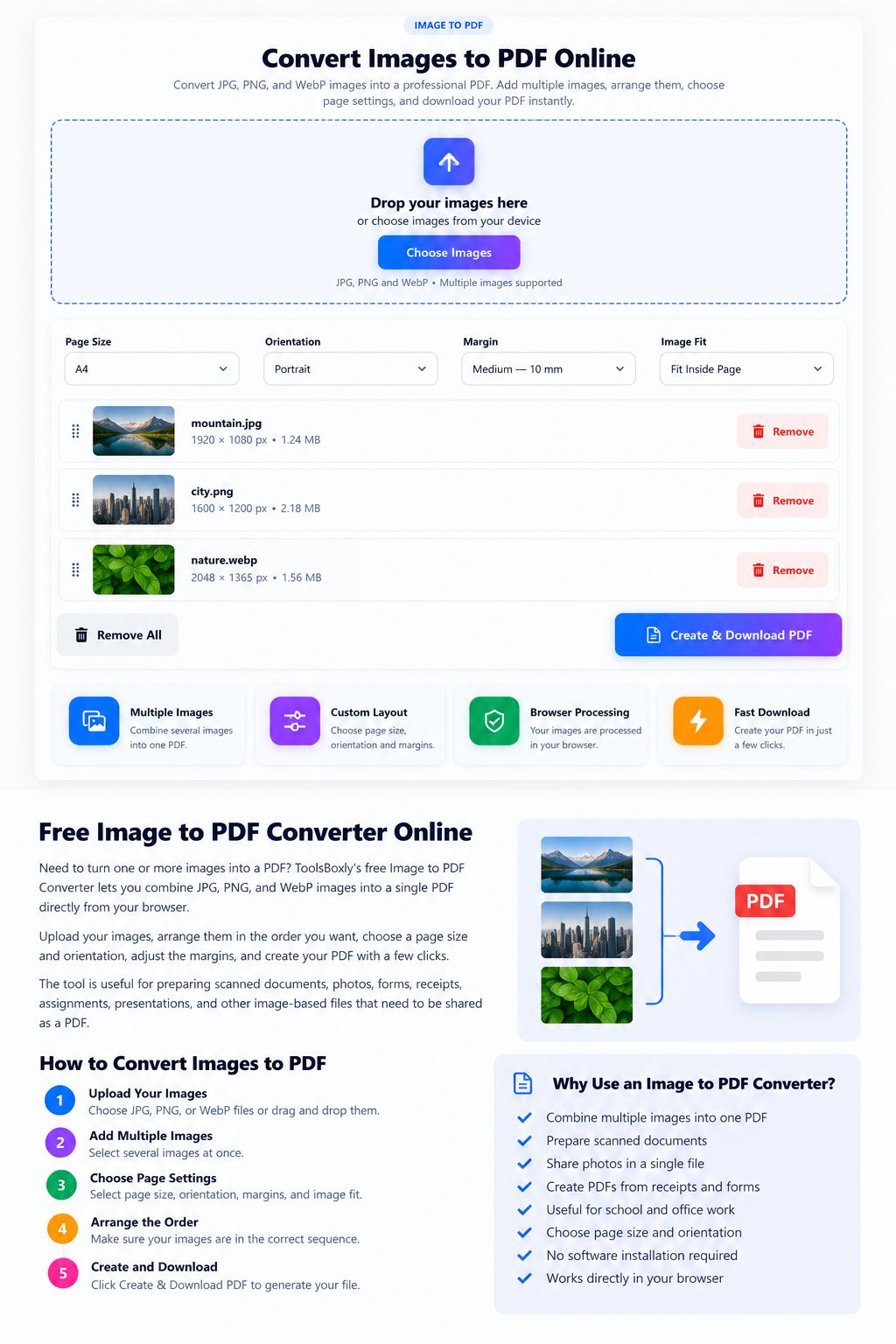
Converting images to PDF is useful when you need to submit a scanned form, combine receipts, share a set of photos, or keep pages together in a single document. A good conversion should preserve readable text, keep pages in the intended order, and produce a file that is easy to open on another device.
When should you convert images to PDF?
PDF is often a practical format for documents that need to be shared or printed consistently. You might convert phone scans of a form, receipts for an expense report, classroom notes, signed pages, or a set of product images. If the images are personal or confidential, check how the tool processes files before using it.
How to convert images to PDF online
- Prepare the images you want to include. Rotate them upright and crop unnecessary borders if needed.
- Open the ToolsBoxly Image to PDF Converter.
- Select the images from your device and check the tool’s supported formats and file-size limits.
- Arrange the images in the order they should appear. The first image usually becomes the first PDF page.
- Choose available page or layout options, if offered, and start the conversion.
- Download the PDF and open it to verify every page before sharing or printing.
How to keep the PDF clear and readable
Start with the clearest original images you have. A blurry phone photo will not become sharp simply because it is converted to PDF. For documents, use even lighting, avoid shadows across text, keep the camera parallel to the page, and check that small print is legible before conversion.
Large, high-resolution images can make a PDF file bigger. If the output is too large to email, you can try the PDF Merger when combining files is your goal, or use the Image Compressor to reduce image size before conversion. Compare readability after reducing file size; avoid compressing text-heavy images so aggressively that letters become difficult to read.
Common problems and how to fix them
Pages appear in the wrong order
Before conversion, arrange the selected images by page number or use the converter’s reordering controls if available. After downloading, scroll through the PDF from beginning to end. File names such as page-01, page-02, and page-03 can make a group easier to manage.
The PDF pages are sideways
Rotate the original image before conversion or use a PDF rotation tool if the finished document needs correction. Check each page individually because a mixed set of portrait and landscape images may need different orientations.
The file is too large
Try using smaller source images or a moderate image-compression setting. Keep an original copy, especially when the PDF contains records or forms that you may need to reproduce later.
Text is hard to search or select
A PDF created from ordinary photos may contain images rather than selectable text. If you need searchable text, you may need an OCR (optical character recognition) tool. Review the recognized text carefully because OCR can misread names, numbers, dates, and punctuation.
Privacy and sensitive documents
Before choosing any online converter, review its privacy information and understand whether files are processed in your browser or sent to a server. Avoid uploading identity documents, financial statements, medical records, or confidential business files unless you trust the service and its handling practices. When possible, use a trusted offline application for sensitive material.
Final checklist
- Images are upright, clear, and cropped appropriately.
- Pages are in the correct order.
- The PDF opens and all pages are visible.
- Text and important details remain readable when zoomed in.
- The file is saved in a suitable location before you close the browser.
For related file tasks, visit the PDF Tools category to explore available utilities. If you notice a problem with a tool, you can send feedback through our Contact Us page.
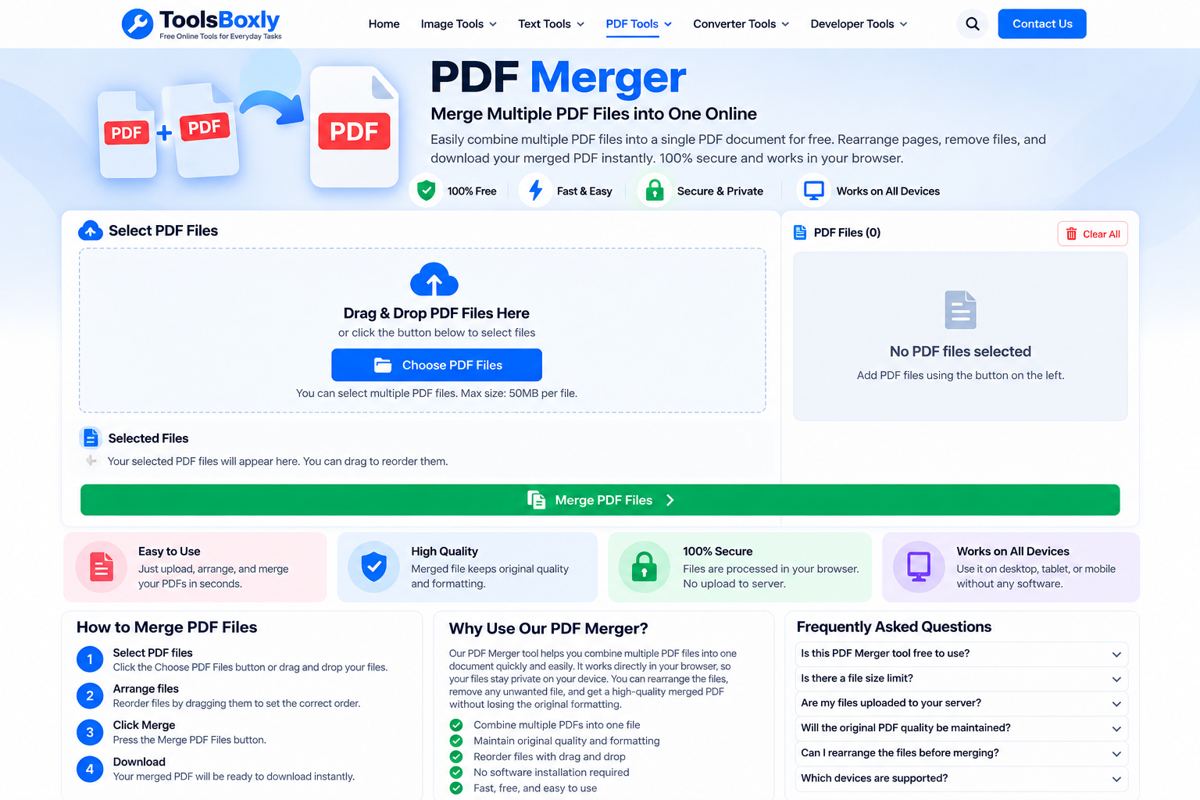
Example workflow: a set of receipts
For an expense report, rename or arrange the receipt images in date order before converting them. Check that each receipt is upright and that totals, dates, and merchant names are readable. After conversion, compare the number of PDF pages with the number of selected images, then open the first, middle, and final pages to catch ordering or cropping mistakes.
When OCR is needed
A PDF made from photographs may look like a document while still containing only images. If you need to search for text or copy a reference number, use a suitable OCR process and review its output carefully. OCR can confuse similar characters such as 0 and O or 1 and I, so do not rely on it without checking important names, amounts, and dates.