
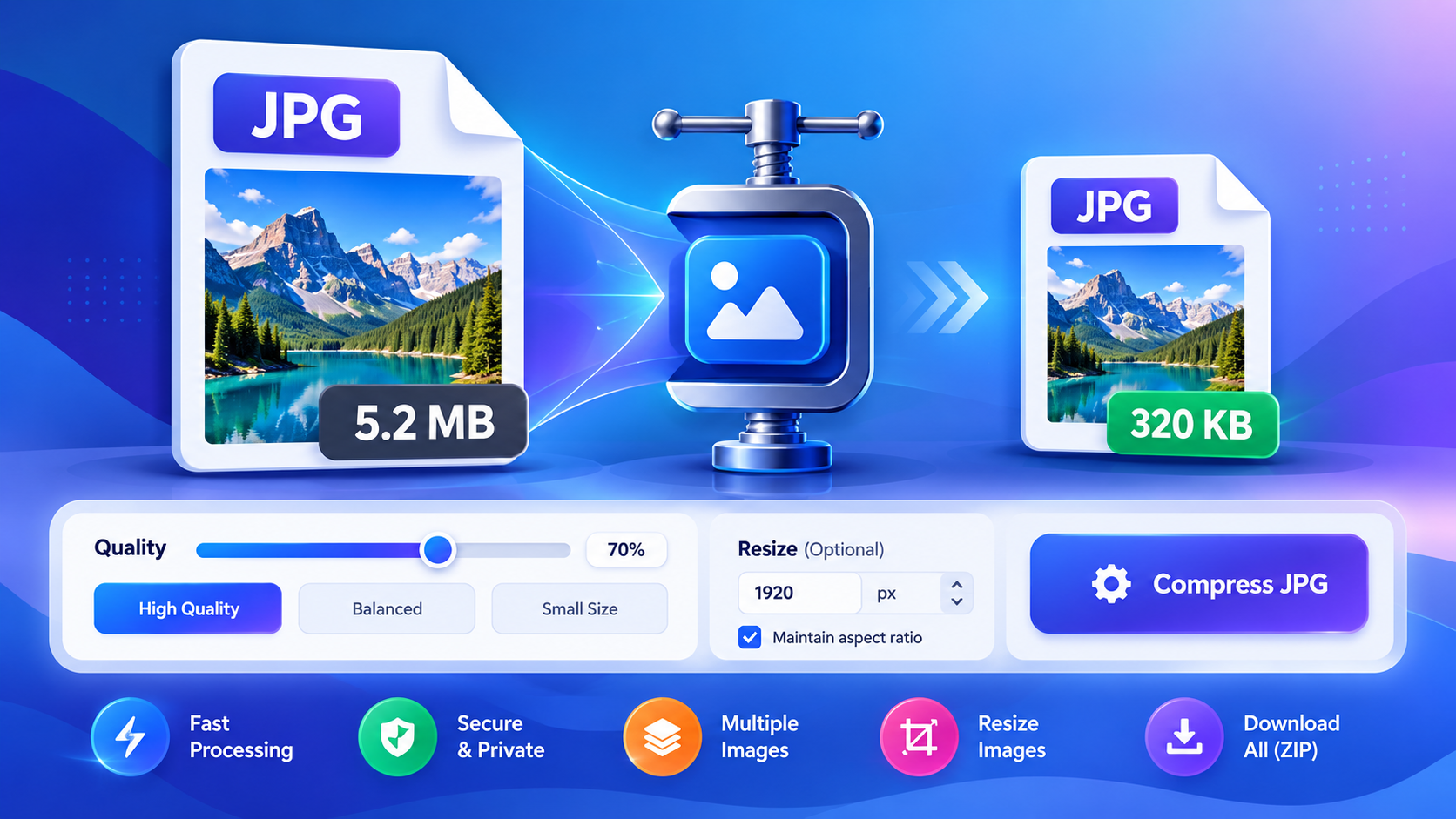
JPG, PNG, and WebP are common image formats, but they are designed for slightly different needs. Choosing the right format can help keep a website responsive while preserving the visual details visitors need. The best option depends on the image itself, whether transparency is required, and what your publishing platform supports.
JPG: a practical choice for photographs
JPG (also written JPEG) uses lossy compression. It can make photographs much smaller by discarding some image information, so the selected quality setting matters. JPG is widely supported and often works well for photos, travel images, product photography, and other pictures with many colors and gradual transitions.
JPG is not ideal for every graphic. Repeatedly saving a JPG at low quality can introduce visible blocks or fuzzy edges around text. It also does not support a transparent background.
PNG: useful for transparency and sharp graphics
PNG commonly uses lossless compression, which preserves the image data rather than discarding detail. It supports transparency and is often a good choice for logos, interface screenshots, diagrams, icons, and graphics with clear edges. However, PNG files can be much larger than JPG files when used for detailed photographs.
If a graphic needs a transparent background or contains small text that must stay crisp, PNG may be worth the extra file size. Always check the exported result at its intended display size.
WebP: an efficient web format
WebP supports both lossy and lossless compression and can support transparency. It often provides a useful balance of quality and file size for web images. Modern browsers support WebP, but you should still check the requirements of older applications, publishing systems, email workflows, or other destinations where the image will be used.
Quick comparison
| Format | Typical strength | Transparency | Good starting point for |
|---|---|---|---|
| JPG/JPEG | Compact photographs | No | Photos and general-purpose images |
| PNG | Lossless detail and clear edges | Yes | Logos, screenshots, diagrams |
| WebP | Efficient web delivery | Yes | Website images where supported |
How to choose a format for a website
- Start with the purpose of the image. A photograph, a logo, and a screenshot have different needs.
- Check whether transparency is necessary. If it is, use PNG or a suitable WebP export rather than JPG.
- Export a test version at a reasonable quality setting and compare it with the original.
- Check the actual file size and inspect important details such as text, edges, skin tones, and gradients.
- Confirm that your website platform and any other destination support the chosen format.
Compress without losing sight of quality
Compression and format conversion are related but different tasks. Converting a JPG to PNG does not automatically make it sharper, and changing the extension without converting the file properly will not change its underlying format. Use an appropriate converter and inspect the output.
The ToolsBoxly Image Compressor can help reduce supported image files, while the JPG Compressor is designed for JPG images. If an image needs different dimensions rather than only a smaller file, use the Image Resizer. Keep an original copy until you are satisfied with the exported result.
Common mistakes to avoid
- Using JPG for a logo that needs a transparent background.
- Saving text-heavy graphics at such low JPG quality that letters become blurry.
- Assuming PNG will always produce the smallest file.
- Renaming a file extension instead of using a proper conversion process.
- Publishing an image without checking its appearance on mobile screens.
Frequently asked questions
Is WebP always better than JPG?
No single format is best for every situation. WebP can reduce file size efficiently, but compatibility requirements and the image’s visual characteristics still matter.
Does PNG improve photo quality?
Converting a photo to PNG does not restore detail already lost in a lossy source image. PNG can preserve the data in the converted image, but it cannot recreate missing information.
Which format should I use for a transparent logo?
PNG is a widely supported choice for transparency. WebP may also work if your destination supports it.
Choose the format that meets the image’s purpose, then compare quality and file size before publishing. A smaller file is useful only when the image still looks clear enough for its intended use.

Real-world choices
Product photograph: start with JPG or WebP and compare detail against file size. Transparent logo: choose PNG or WebP when the destination supports transparency. Interface screenshot: PNG may preserve small text and crisp edges better than a low-quality JPG. Website hero image: choose dimensions for the layout, then compare WebP and other supported formats before publishing.
Keep a source file
Keep the original editable or highest-quality image separate from the optimized web copy. That way you can create a new size or format later without repeatedly recompressing the same file. After upload, check the image on desktop and mobile, including any crop applied by the theme.
2 thoughts on “JPG vs PNG vs WebP: Which Image Format Should You Use?”
Comments are closed.