

JPG is widely used for photographs because it can store detailed images in relatively small files. Its compression is usually lossy, which means some image information is discarded to reduce file size. The challenge is choosing a level that saves space without creating visible damage.
What compression changes
At a moderate setting, changes may be difficult to notice at normal viewing size. Strong compression can create blocky patches, smudged textures, halos around edges, and loss of fine detail. These problems are more noticeable in hair, leaves, patterned fabric, small text, and images with sharp contrast.
Compare at the size people will see
Do not judge quality only from a tiny thumbnail or an extreme zoom. Compare the original and compressed versions at the expected display size, then inspect critical areas more closely. A photograph used as a small preview may tolerate more compression than an image that will be printed or enlarged.
Resize before compressing
If a photo is 5000 pixels wide but will appear in a 900-pixel content area, the extra dimensions may add unnecessary weight. Resize it for its intended use, then apply compression. The JPG Compressor can help with JPEG files, while the Image Compressor supports common image workflows.
Do not repeatedly save the same JPG
Repeated lossy saves can compound image degradation. Keep a master original and export a fresh compressed copy whenever possible. If you need repeated edits, use an editable source or a lossless working format, then create the final JPG once the edits are complete.
When JPG may not be the best choice
JPG is usually suitable for photographs, but it does not support transparency. Logos, interface icons, or graphics with clean flat colours may work better as PNG or WebP depending on the destination. Read our format comparison before choosing.
Practical quality checklist
- Keep a copy of the original image.
- Resize to the intended display dimensions.
- Compare file size and visual quality together.
- Inspect fine detail, edges, and text.
- Use another format when transparency or crisp graphics matter.
There is no single compression setting that works for every image. Choose the smallest file that still meets the visual requirements of the job.
Related Guides
You may also find it useful to choose the right image size (read this guide) and write useful image alt text (read more). Browse the Guides & Tutorials category for more practical articles.
Compare compression results fairly
Use a copy of the original image and compare both files at the same display size. Look closely at small text, thin lines, faces, gradients, and areas with fine detail. A smaller file is not automatically better if important information becomes hard to read. Record the original size, compressed size, and visual differences so you can choose a sensible balance for the intended use.
Keep an original backup
Repeatedly saving an already compressed JPG can introduce additional quality loss. Keep the source file and create a new compressed copy for each experiment. For logos, screenshots with sharp text, or images that need transparency, consider whether another format is more suitable before choosing JPG.
Try the related tool
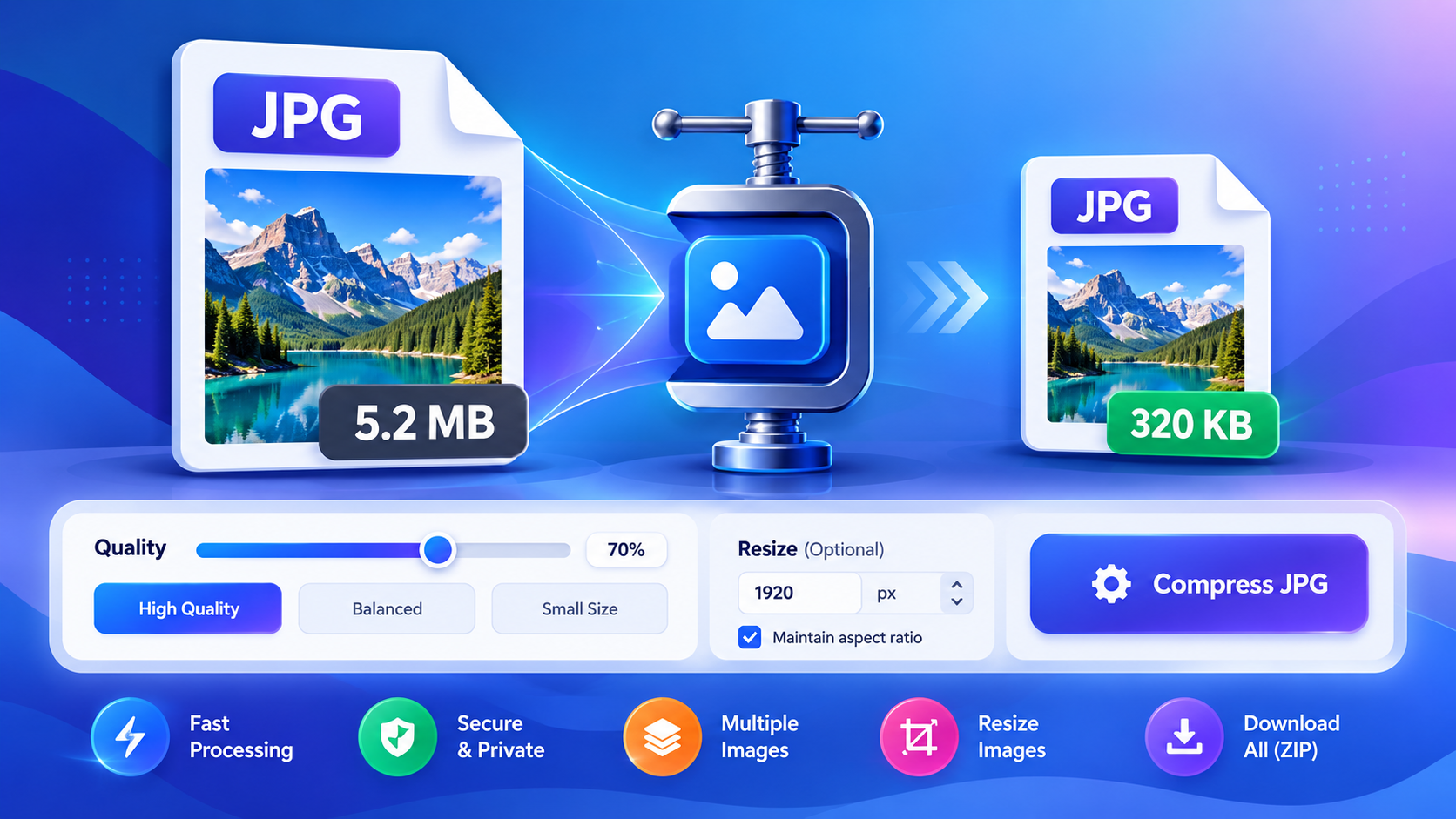
Open the JPG Compressor for a related file or text task. Check the result before using or sharing it.