
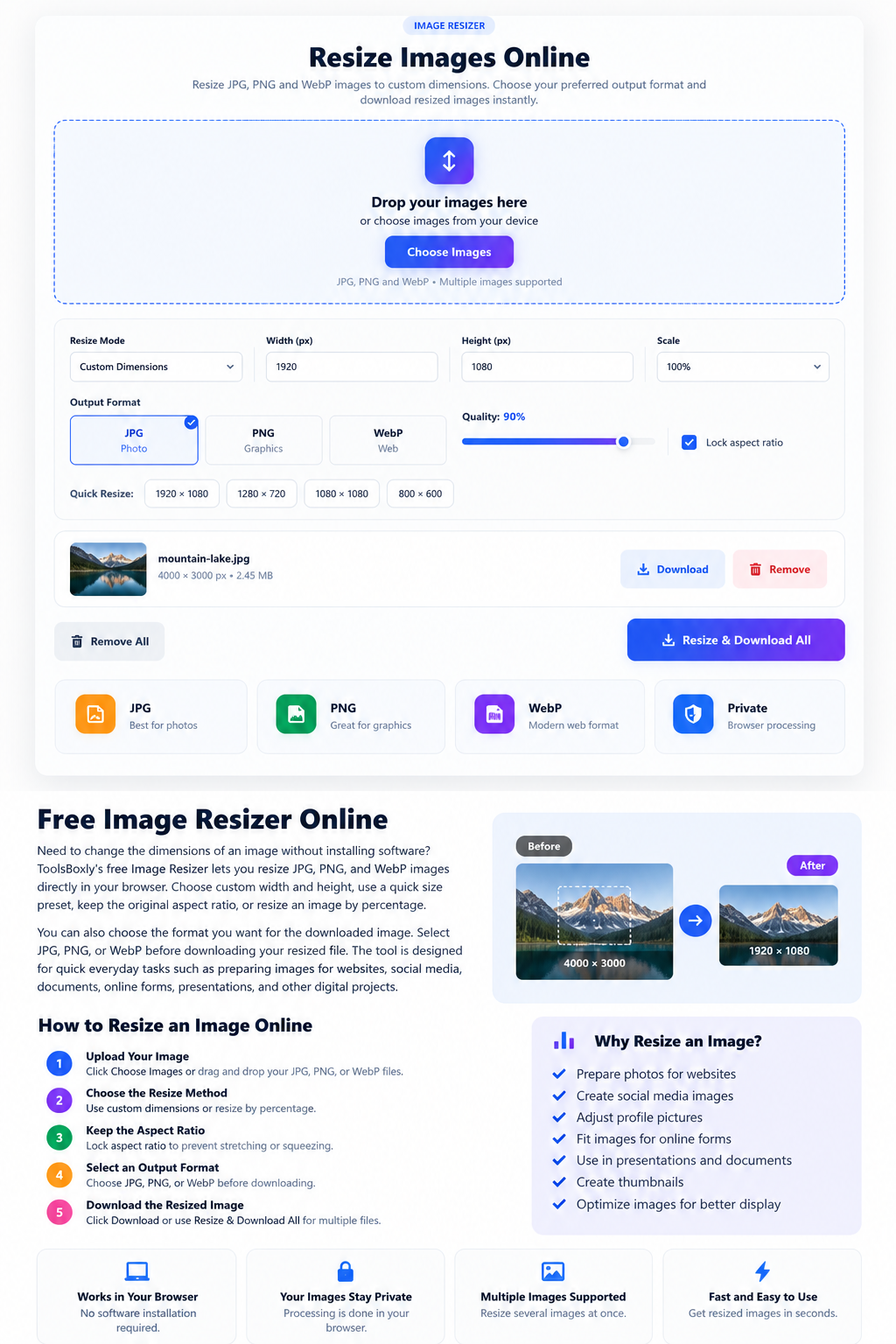
Resize Images Online
Resize JPG, PNG and WebP images to custom dimensions. Choose your preferred output format and download resized images instantly.
Drop your images here
or choose images from your device
JPG, PNG and WebP • Multiple images supportedFree Image Resizer Online
Need to change the dimensions of an image without installing software? ToolsBoxly’s free Image Resizer lets you resize JPG, PNG, and WebP images directly in your browser. Choose custom width and height, use a quick size preset, keep the original aspect ratio, or resize an image by percentage.
You can also choose the format you want for the downloaded image. Select JPG, PNG, or WebP before downloading your resized file.
The tool is designed for quick everyday tasks such as preparing images for websites, social media, documents, online forms, presentations, and other digital projects.
What Is an Image Resizer?
An image resizer is an online tool that changes the pixel dimensions of an image. For example, a photo that is 4000 × 3000 pixels can be resized to 1200 × 900 pixels while maintaining its proportions.
Image dimensions and file size are related, but they are not the same thing. Resizing changes the width and height of an image. Compression, on the other hand, focuses mainly on reducing the amount of data stored in the file.
This distinction is useful when choosing the right tool. If you need a specific width or height, an image resizer is usually the appropriate option.
How to Resize an Image Online
Using the ToolsBoxly Image Resizer is simple:
1. Upload Your Image
Click Choose Images and select one or more JPG, PNG, or WebP files from your device. You can also drag your images into the upload area.
2. Choose the Resize Method
The tool provides two ways to change image dimensions.
Custom Dimensions: Enter the exact width and height you need.
Percentage: Resize the image using a percentage such as 50%, 75%, 100%, 150%, or 200%.
3. Keep the Aspect Ratio
The Lock Aspect Ratio option helps prevent unwanted stretching or squeezing.
When the option is enabled, changing the width automatically adjusts the height according to the original proportions.
If you need completely independent width and height values, you can turn the option off.
4. Select an Output Format
Before downloading, choose the format you want:
- JPG — commonly used for photographs and general-purpose images.
- PNG — useful for graphics and images where transparency may be important.
- WebP — a modern image format commonly used on websites.
The selected format is used when the resized image is generated.
5. Download the Resized Image
Click Download for an individual image or Resize & Download All when working with multiple files.
Your resized files are then saved to your device.
Why Resize an Image?
There are many situations where the original dimensions of a photo are larger than necessary.
A modern smartphone camera, for example, can produce an image with thousands of pixels in width. That resolution may be useful for printing, but it can be unnecessarily large for a website, profile picture, form, or social media upload.
Resizing can help you create an image that better fits the space where you intend to use it.
Common reasons to resize an image include:
- Preparing photos for a website
- Creating social media images
- Adjusting profile pictures
- Preparing images for online forms
- Creating presentation graphics
- Making photos fit a specific design
- Preparing images for blog posts
- Creating thumbnails
- Adjusting product images
- Matching required pixel dimensions
Image Dimensions Explained
Image dimensions are normally expressed as width × height in pixels.
For example:
1920 × 1080
means the image is:
- 1920 pixels wide
- 1080 pixels high
Similarly, a square image of 1080 × 1080 has equal width and height.
The correct dimensions depend on where you plan to use the image. There is no single size that works for every website, platform, or design.
That’s why the ToolsBoxly Image Resizer provides both custom dimensions and quick presets.
What Does Aspect Ratio Mean?
Aspect ratio describes the relationship between an image’s width and height.
For example, an image measuring 1600 × 900 has a 16:9 aspect ratio.
If you change only the width while keeping the same ratio, the height should change proportionally. This helps prevent the image from looking stretched or compressed.
For most photographs, keeping the original aspect ratio is a good starting point.
However, there are situations where you may intentionally need exact dimensions. For example, a design template might require an image to be exactly 800 × 800 pixels. In that situation, you can turn off the aspect-ratio lock and enter the dimensions manually.
JPG vs PNG vs WebP
The output format can affect how an image is stored and displayed.
JPG
JPG is widely used for photographs, camera images, and other images containing many colors.
It is often a practical choice when you need a smaller photographic file and do not need transparency.
PNG
PNG is commonly used for logos, illustrations, interface graphics, screenshots, and other images where preserving sharp details or transparency can be useful.
PNG files can be larger than JPG files depending on the image.
WebP
WebP is a modern image format supported by current browsers and commonly used for web content.
It can be useful when preparing images specifically for websites and other online applications.
The best format depends on the type of image and how you plan to use it.
Resize Images for Websites
Large images can contain far more pixels than a webpage actually needs.
For example, uploading a very large camera photograph when a website only displays the image at a much smaller size may be unnecessary.
Resizing an image to a suitable display dimension can make the file more practical for web use. You should still consider image compression separately when your goal is to reduce file size.
For website images, the right dimensions depend on the design, content area, device requirements, and intended display size.
Resize Images Without Installing Software
ToolsBoxly’s Image Resizer works directly from your web browser.
There is no desktop application to install and no separate image-editing program required for basic resizing tasks.
You can select an image, choose your dimensions, select an output format, and download the result from the same page.
The tool is designed for quick tasks where you need a straightforward way to change image dimensions.
Is the Image Resizer Free?
Yes. The ToolsBoxly Image Resizer is provided as a free online tool.
You can use it to resize supported JPG, PNG, and WebP images without purchasing desktop image-editing software.
Are My Images Uploaded to a Server?
The Image Resizer is designed to process images in your browser.
That means the resizing operation is performed locally by your browser rather than requiring the image to be sent to a remote image-processing service.
Even so, you should always review the privacy information of any website or tool before processing sensitive files.
For ToolsBoxly’s privacy practices, visit the Privacy Policy page.
Can I Resize Multiple Images?
Yes. The tool supports selecting multiple images at once.
After adding your images, you can apply the selected resize settings and download the processed files individually or use the Resize & Download All option.
This can be useful when several images need the same dimensions.
Common Image Resizing Mistakes
Stretching the Image
Entering unrelated width and height values can distort a photograph.
Use Lock Aspect Ratio when you want to preserve the original proportions.
Making an Image Larger Without a Reason
Increasing dimensions does not create new photographic detail that was not present in the original image.
If you only need a larger canvas or a specific dimension, resizing can still be useful, but the visual result depends on the source image.
Confusing Dimensions With File Size
Changing dimensions and reducing file size are different tasks.
If your main goal is a smaller file for uploading or sharing, you may also need an image compression tool.
Choosing the Wrong Format
A photograph, transparent logo, and web graphic may benefit from different formats. Consider the image type and where you intend to use it before choosing JPG, PNG, or WebP.
Frequently Asked Questions
What is the best size for an image?
There is no universal best image size. The appropriate dimensions depend on where the image will be displayed and the requirements of the website, application, document, or platform.
Can I resize JPG images online?
Yes. Upload a JPG image to the ToolsBoxly Image Resizer, choose your desired dimensions, and download the resized image.
Can I resize PNG images?
Yes. PNG images are supported. You can set custom dimensions and choose PNG as the output format.
Can I resize WebP images?
Yes. WebP files are supported by the Image Resizer and can be resized using custom dimensions or percentage scaling.
Will resizing change the image quality?
Changing dimensions can affect how an image looks, particularly when making it significantly smaller or larger. The final result also depends on the source image and selected output format.
Does the tool keep the original aspect ratio?
Yes. Lock Aspect Ratio is available to help maintain the original proportions while changing dimensions.
Can I resize an image to an exact pixel size?
Yes. Choose Custom Dimensions, enter the required width and height, and resize the image.
Can I resize several images at once?
Yes. Multiple JPG, PNG, and WebP images can be selected and processed using the same resize settings.
What is the difference between resizing and compressing an image?
Resizing changes an image’s pixel dimensions. Compression primarily reduces the amount of data stored in the image file. They are separate processes and can be used together when appropriate.
Which format should I choose after resizing?
JPG is commonly suitable for photographs, PNG can be useful for graphics and transparency, and WebP is a modern option for many web-use cases. The appropriate choice depends on your image and intended use.
Resize Images Quickly With ToolsBoxly
Whether you need to prepare a photo for a website, create a specific image size for a form, adjust a profile picture, or resize several images at once, ToolsBoxly’s Image Resizer provides a simple way to handle the task directly in your browser.
Upload your image, choose the dimensions, select JPG, PNG, or WebP, and download the resized result.
Related Image Tools
For related tasks, try the Image Compressor, JPG Compressor, or Image to PDF Converter.