
JPG Compressor
Compress, resize and convert your images with professional quality control.
JPG Compressor Online
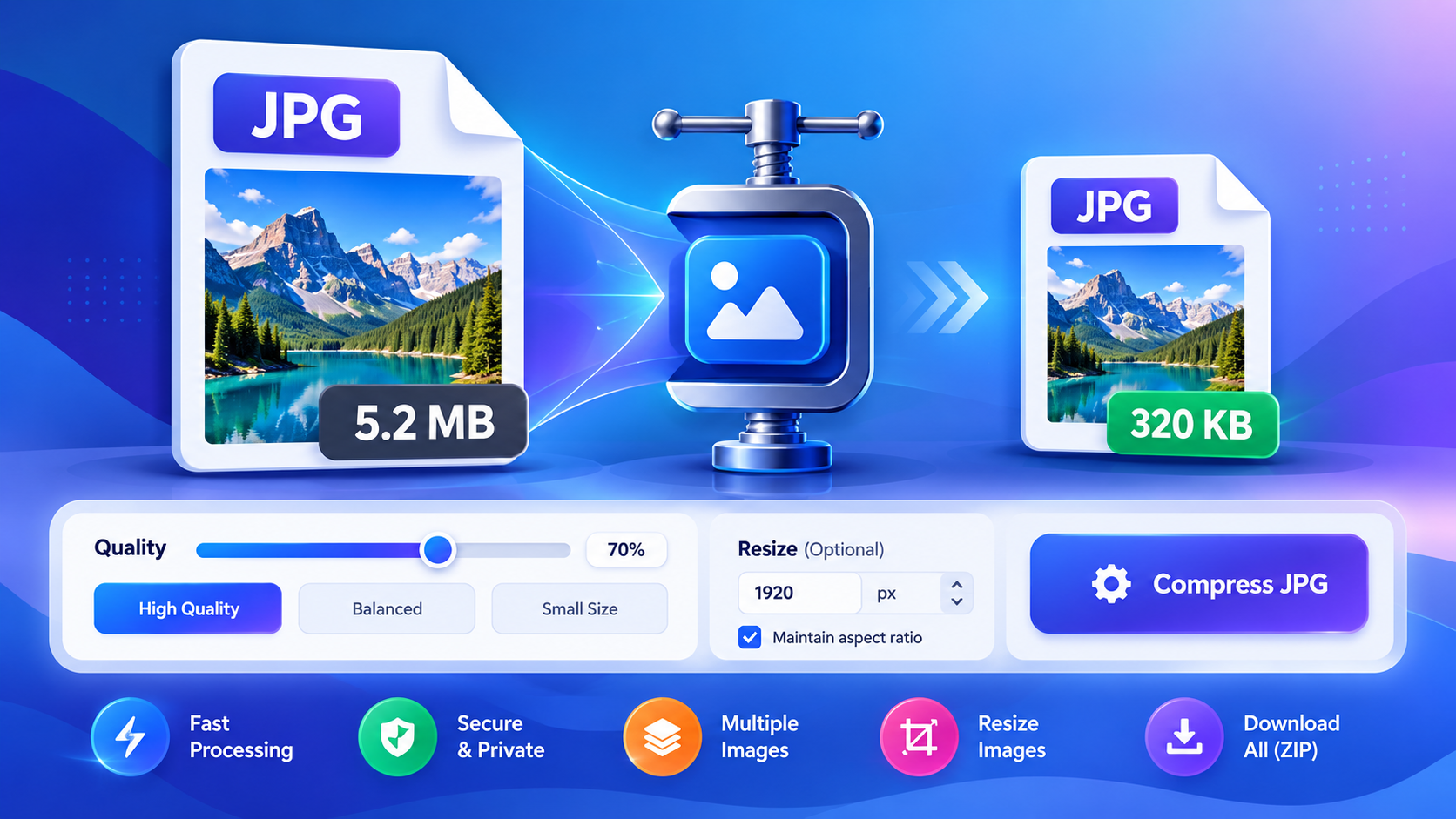
Large JPG images can take longer to upload, use more storage, and make websites load slower. Our JPG Compressor helps you reduce JPG file size quickly without uploading your images to a server.
Simply select your JPG or JPEG images, choose the compression quality, and let the tool optimize them directly in your browser.
How to Compress a JPG Image
1. Select your JPG image
Click Browse Files or drag your JPG/JPEG images into the upload area. You can select multiple images at once.
2. Choose compression quality
Use the quality slider to control the balance between image quality and file size. You can also choose High Quality, Balanced, or Small Size.
3. Resize if needed
If your image is too large, enter a maximum width. The tool will automatically maintain the image’s original proportions.
4. Compress your images
The tool processes your images directly in your browser and shows the original and compressed file sizes.
5. Download your JPG files
Download individual compressed images or use Download All ZIP for multiple files.
Why Use Our JPG Compressor?
Reduce JPG File Size
Compressing large JPG images can make them easier to store, share, upload, and use on websites.
Control Image Quality
You can choose the compression level instead of using a single fixed setting.
Compress Multiple Images
Upload multiple JPG files and process them together instead of compressing each image separately.
Resize Large Images
The optional maximum-width setting lets you reduce the dimensions of oversized images while keeping their proportions.
Compare Before and After
Use the built-in comparison feature to view the original and compressed image side by side with an interactive slider.
No Signup Required
The tool is designed to work directly in your browser without requiring an account.
Is This JPG Compressor Free?
Yes. The JPG Compressor is free to use. You can compress JPG and JPEG images, adjust quality, resize images, compare results, and download your optimized files without creating an account.
Are My Images Uploaded?
No. Image processing is performed directly in your browser. Your selected images are not intentionally uploaded to our server for compression.
For sensitive or private images, you should still use normal caution when using any online tool.
JPG Compression Quality
There is a trade-off between file size and image quality.
- High Quality: Better visual quality with a larger file size.
- Balanced: A practical balance between quality and compression.
- Small Size: Greater compression when reducing file size is the priority.
For most everyday images, the Balanced setting is a good starting point.
JPG Compressor for Websites
Large images can add unnecessary weight to webpages. Compressing images before uploading them to a website can help reduce the amount of data visitors need to download.
For website images, choose a suitable quality level and resize very large images when the original dimensions are larger than needed.
Frequently Asked Questions
What is a JPG compressor?
A JPG compressor is a tool that reduces the file size of JPEG/JPG images by applying image compression.
Can I compress multiple JPG images?
Yes. This tool supports multiple JPG and JPEG files so you can process several images in one session.
Can I resize a JPG while compressing it?
Yes. Enter a maximum width and the tool can resize images that are wider than that value.
Does JPG compression reduce quality?
JPG compression can reduce some image detail. The amount depends on the selected quality level. Higher quality generally preserves more detail while producing a larger file.
Can I compare the original and compressed image?
Yes. After compression, use the Compare option to view the original and compressed versions with an interactive comparison slider.
Important Note
Compression results vary depending on the original image, dimensions, details, and selected quality. Some JPG images may become much smaller, while others may show a smaller reduction.
Tip: If you’re unsure which setting to use, start with Balanced and compare the result before downloading.
Related Image Tools
You can also use the Image Compressor, Image Resizer, and Image to PDF Converter.