
PDF files are useful for forms, reports, receipts, manuals, and scanned documents because their layout is usually preserved across devices. Sometimes a document needs to be combined with another file, or only a few pages need to be shared. Merging and splitting PDFs can make those tasks easier, provided the final document is checked before it is sent.
When to merge PDF files
Merging is helpful when several related documents should be kept together. Examples include combining pages of a report, assembling a set of application documents, or putting several scanned pages into one file. Keep unrelated or confidential documents separate when there is no reason to combine them.
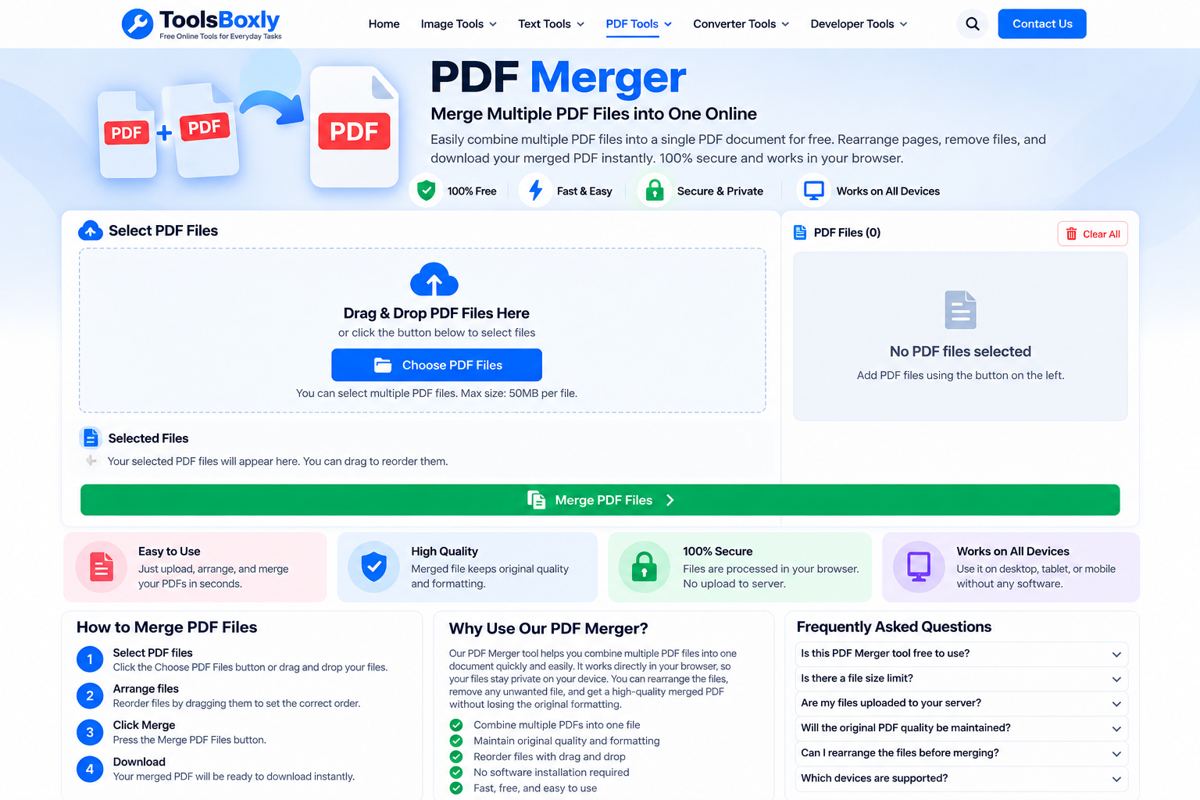
How to merge PDF documents
- Prepare the PDFs you want to combine and give them clear filenames.
- Open the ToolsBoxly PDF Merger.
- Select the files and arrange them in the intended order if the tool provides reordering controls.
- Start the merge and wait for processing to finish.
- Download the new PDF, open it, and check page order, orientation, text, and total page count.
Do not assume that the file order in your folder will always be the order used in the output. Review the tool’s interface and confirm the result.
When to split a PDF
Splitting is useful when you need to share only selected pages, separate chapters, extract a form, or reduce a large document into smaller parts. Before splitting, identify the exact page numbers. PDF page numbering can differ from printed page numbers shown inside the document, especially when the file contains a cover page or front matter.
How to split a PDF
- Open the PDF Splitter.
- Choose the PDF file you want to process.
- Enter or select the page ranges using the tool’s available controls.
- Run the split operation and download the resulting file or files.
- Open each output and verify that the intended pages are present and no extra pages were included.
Rotate pages when needed
Scanned documents sometimes contain sideways or upside-down pages. Use a PDF Rotator if you need to correct page orientation. Check every affected page after saving because some documents contain pages with different orientations by design.
Quality and accessibility checks
After any PDF operation, confirm that text is readable, page edges are not cut off, links still work when important, and the document opens in a standard PDF reader. If the PDF contains selectable text, try searching for a word. Scanned pages may be images rather than searchable text, so OCR may be needed if text search is important.
Protect private information
PDFs can contain addresses, signatures, financial records, medical details, or other sensitive information. Before using an online tool, review whether processing happens in your browser or on a remote server and read the service’s privacy information. Do not upload confidential files to a service unless its handling practices are appropriate for your needs.
Removing visible text from a PDF is not always the same as securely redacting it. A black rectangle placed over text may leave the original text embedded in the file. For sensitive documents, use a proper redaction workflow and verify that the underlying information cannot be selected or recovered.
Common problems
- Wrong page order: Reorder files before merging and inspect the output.
- Missing pages: Check page ranges and the difference between printed numbering and PDF page positions.
- Large output: Scanned images can make a PDF large. Compression may help, but check readability afterward.
- Password-protected file: You may need permission or the correct password before processing it.
- Broken or blank output: Try opening the original file in a trusted reader and confirm it is not damaged.
Frequently asked questions
Can I merge PDFs with different page sizes?
Often yes, but the resulting file may contain pages of different sizes. Review the final document before sharing it.
Does splitting reduce file size?
It can reduce the size of each individual part, but it does not necessarily reduce the combined size of all output files.
Should I delete the original PDF?
Keep the original until you have verified the new files and are sure you no longer need the source.
Using a clear filename and checking the output are simple steps that help prevent sending the wrong pages or an incomplete document.
Merge or split: choose the right operation
Merge files when the recipient needs several related documents in one package, such as a report with appendices. Split a file when only selected pages are needed or when separate recipients should receive different sections. If both operations are required, plan the page ranges first and keep an untouched copy of the source until every output has been checked.
Quality checks after either operation
Compare page counts, verify the first and last page, inspect any scanned or rotated pages, and check that the output opens in a standard PDF reader. If the file includes links, form fields, bookmarks, or signatures, verify whether the operation preserved them before relying on the output for official use. Do not assume every PDF tool preserves every feature.